Quick start
Let’s see what Leoparo can do for you.
Then just ask:
- ✉️ “Summarize my unread emails”
- ⚡ “When I get an email → draft a reply”
- 🗓️ “According to my data, what are my expenses this month?”
Steps
Start chatting with your apps
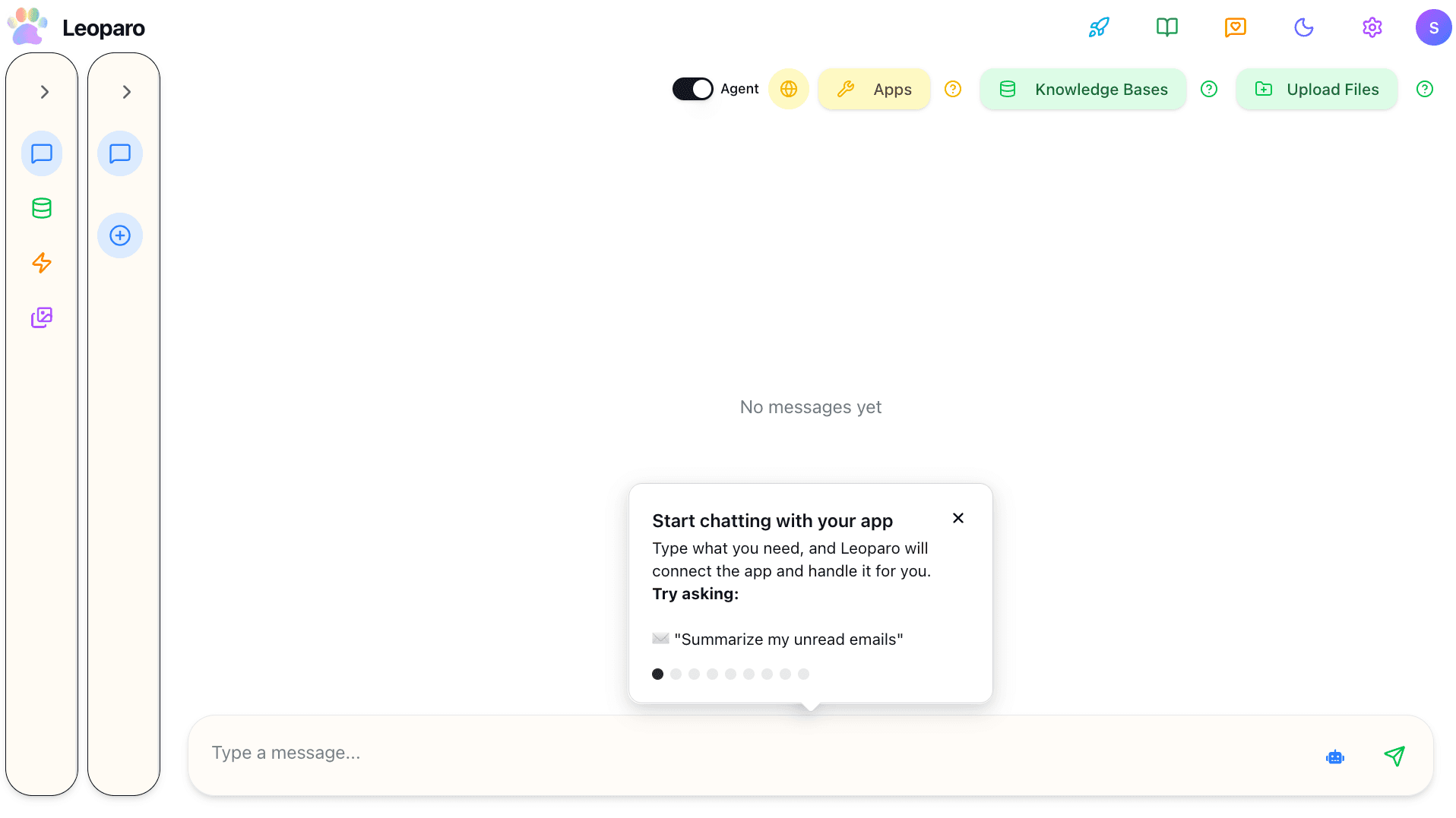
Type what you need, and Leoparo will connect your apps and handle it for you.
Try asking:
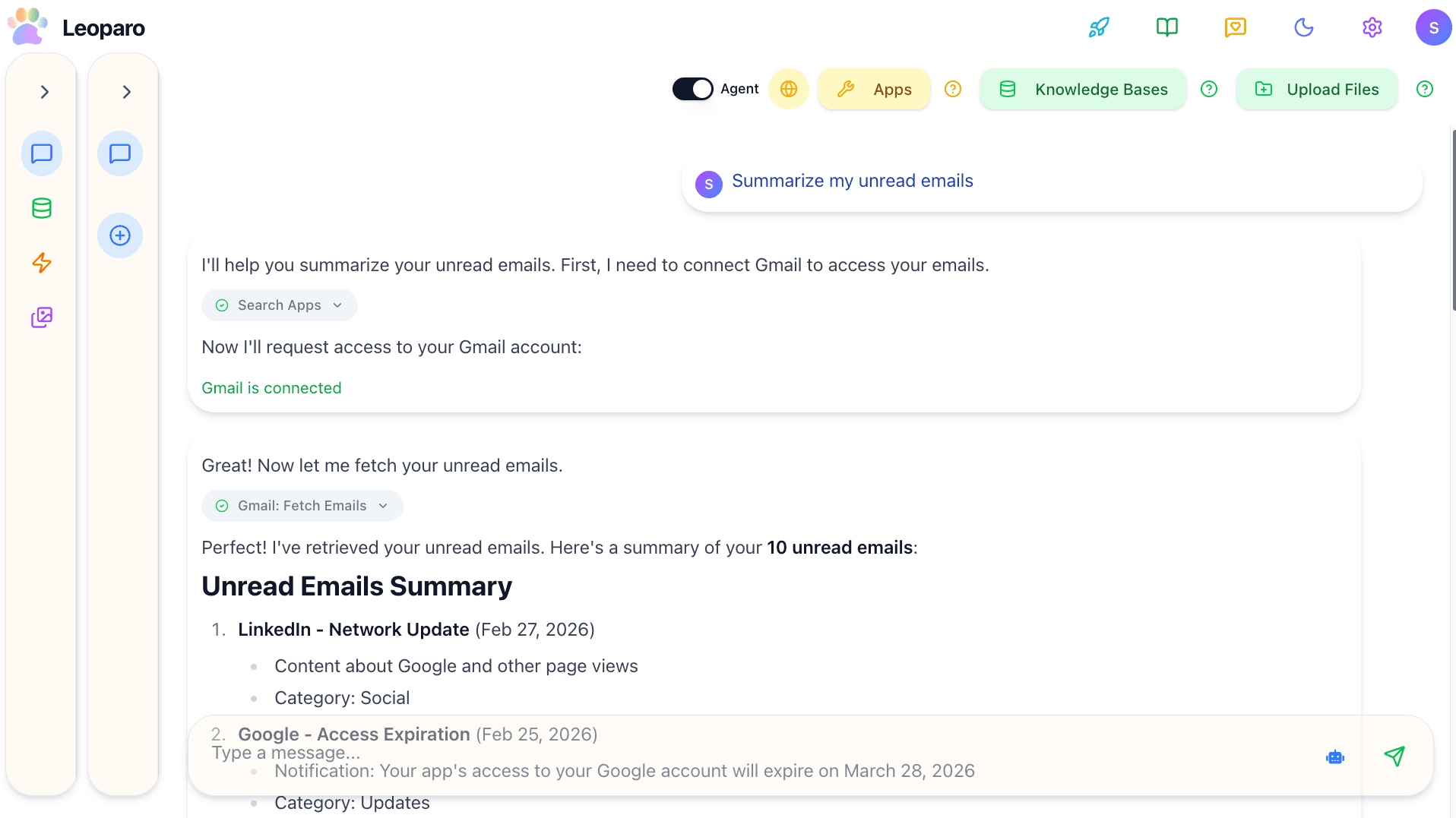
- ✉️ “Summarize my unread emails”
Then Leoparo will connect your apps and handle it for you:
Tell Leoparo to set up automations
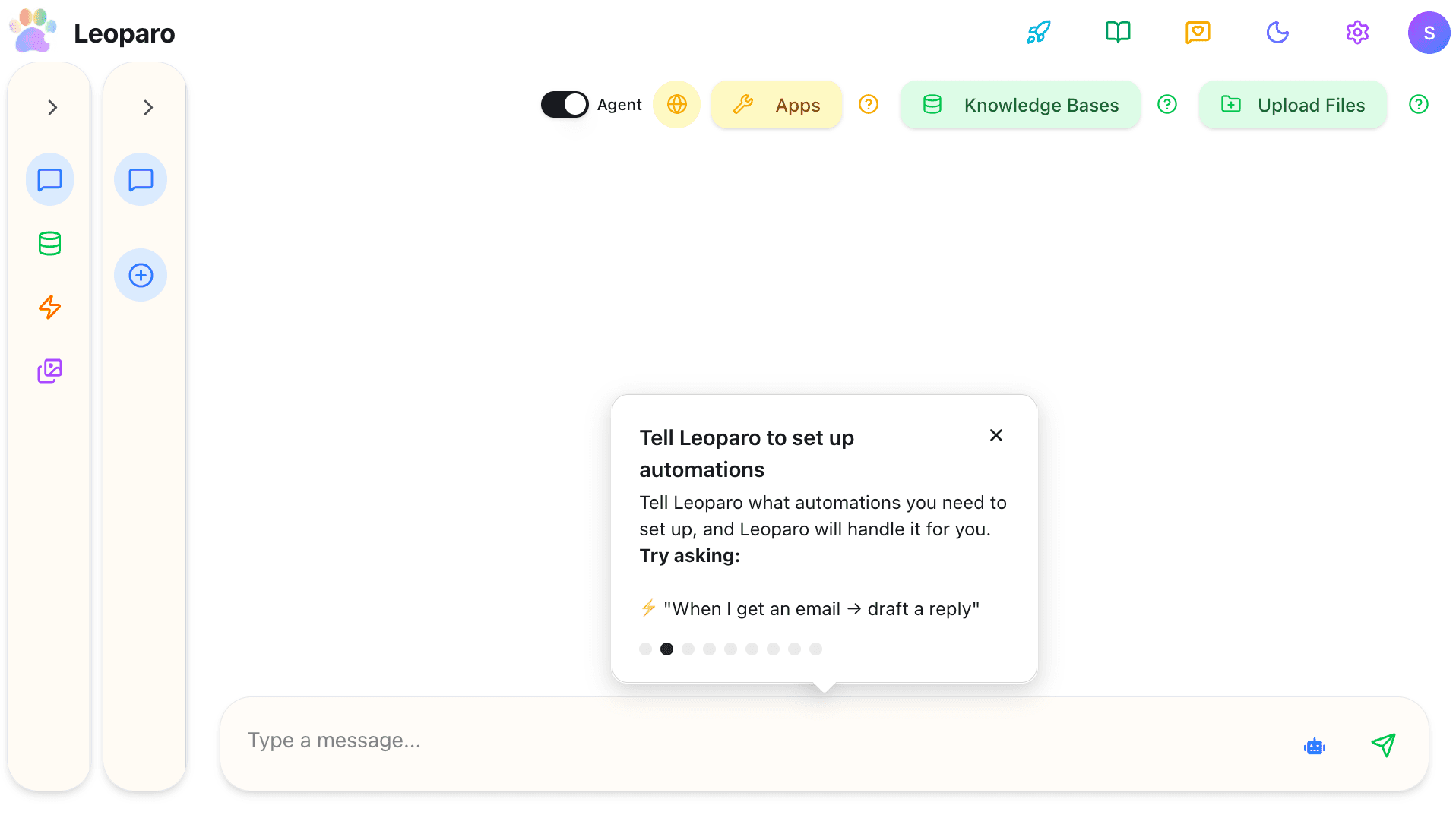
Tell Leoparo what automations you need to set up, and Leoparo will handle it for you.
Try asking:
⚡ “When I get an email → draft a reply”
Then Leoparo will set up the automation for you:
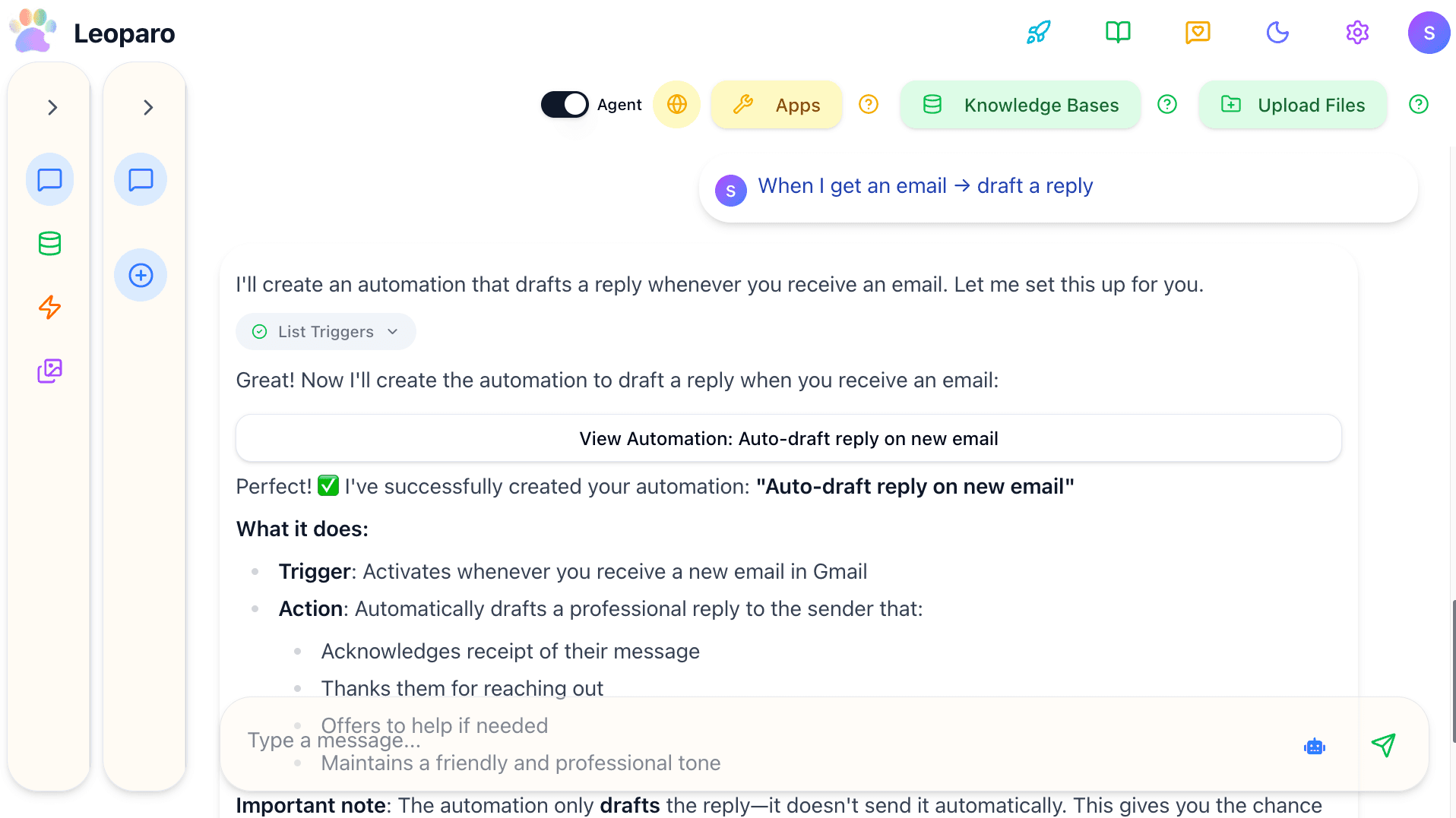
View automation
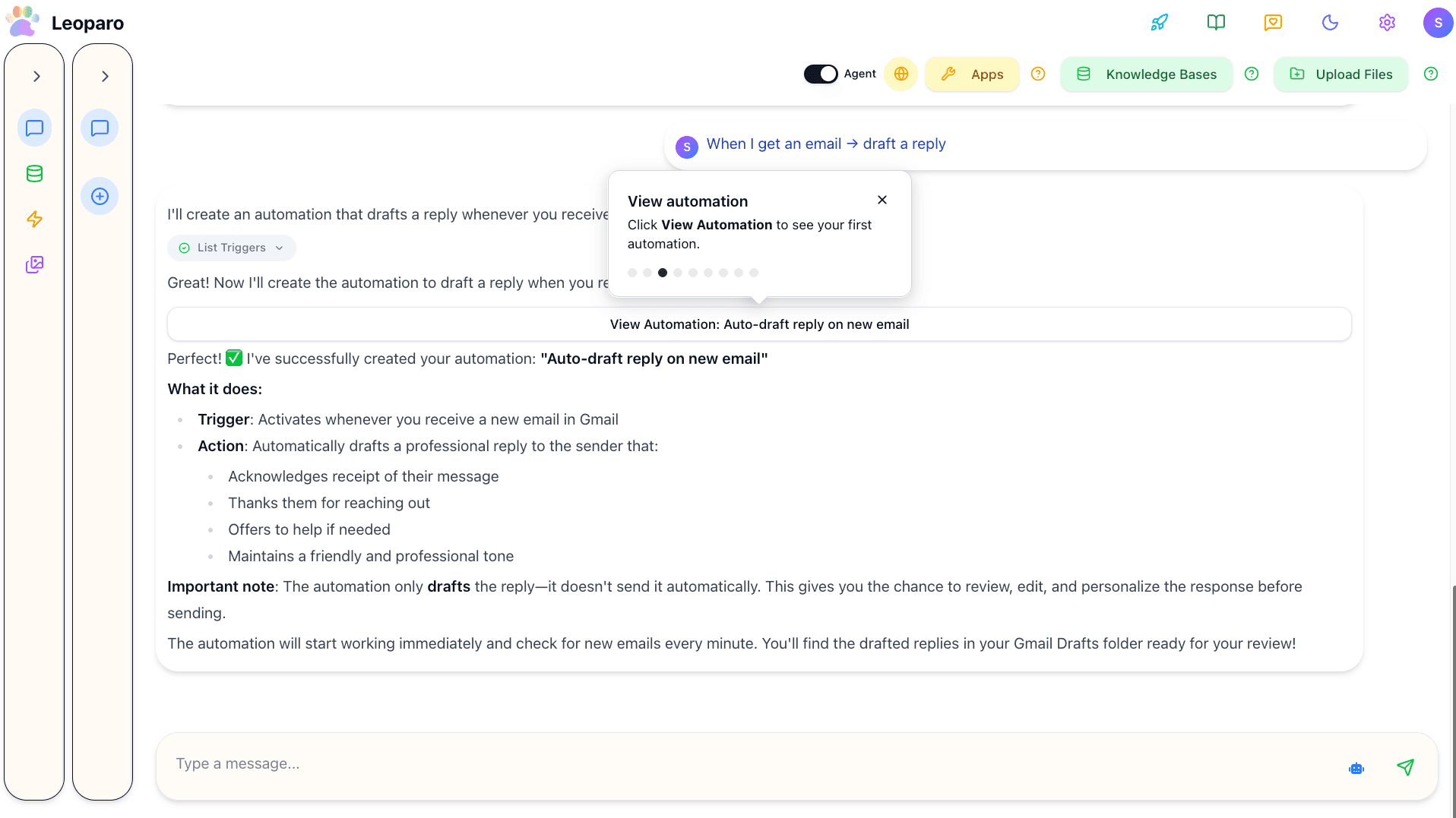
Click View Automation to see your first automation.
Automation
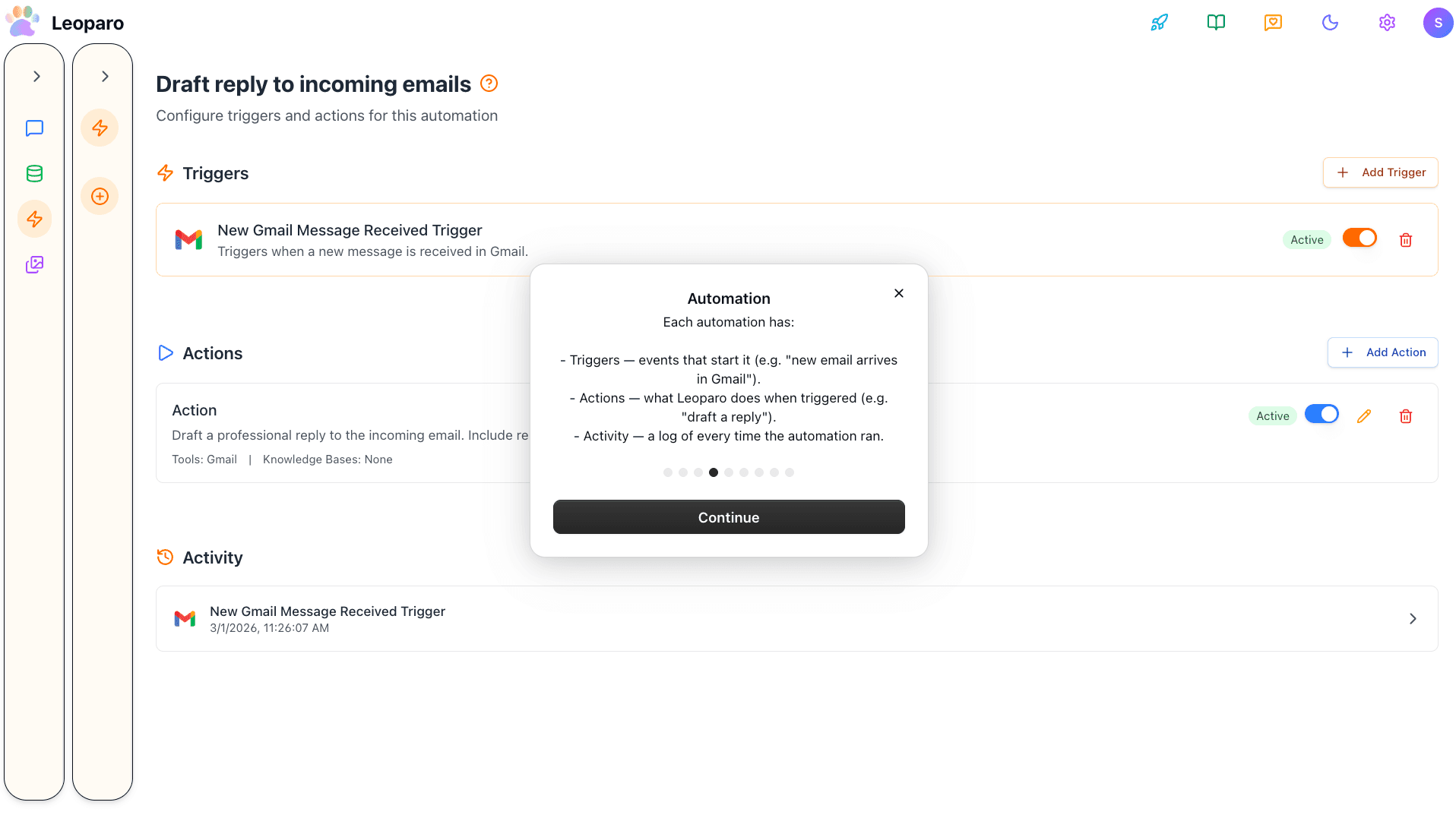
Each automation has:
- Triggers — events that start it (e.g. “new email arrives in Gmail”).
- Actions — what Leoparo does when triggered (e.g. “draft a reply”).
- Activity — a log of every time the automation ran.
Upload your first document
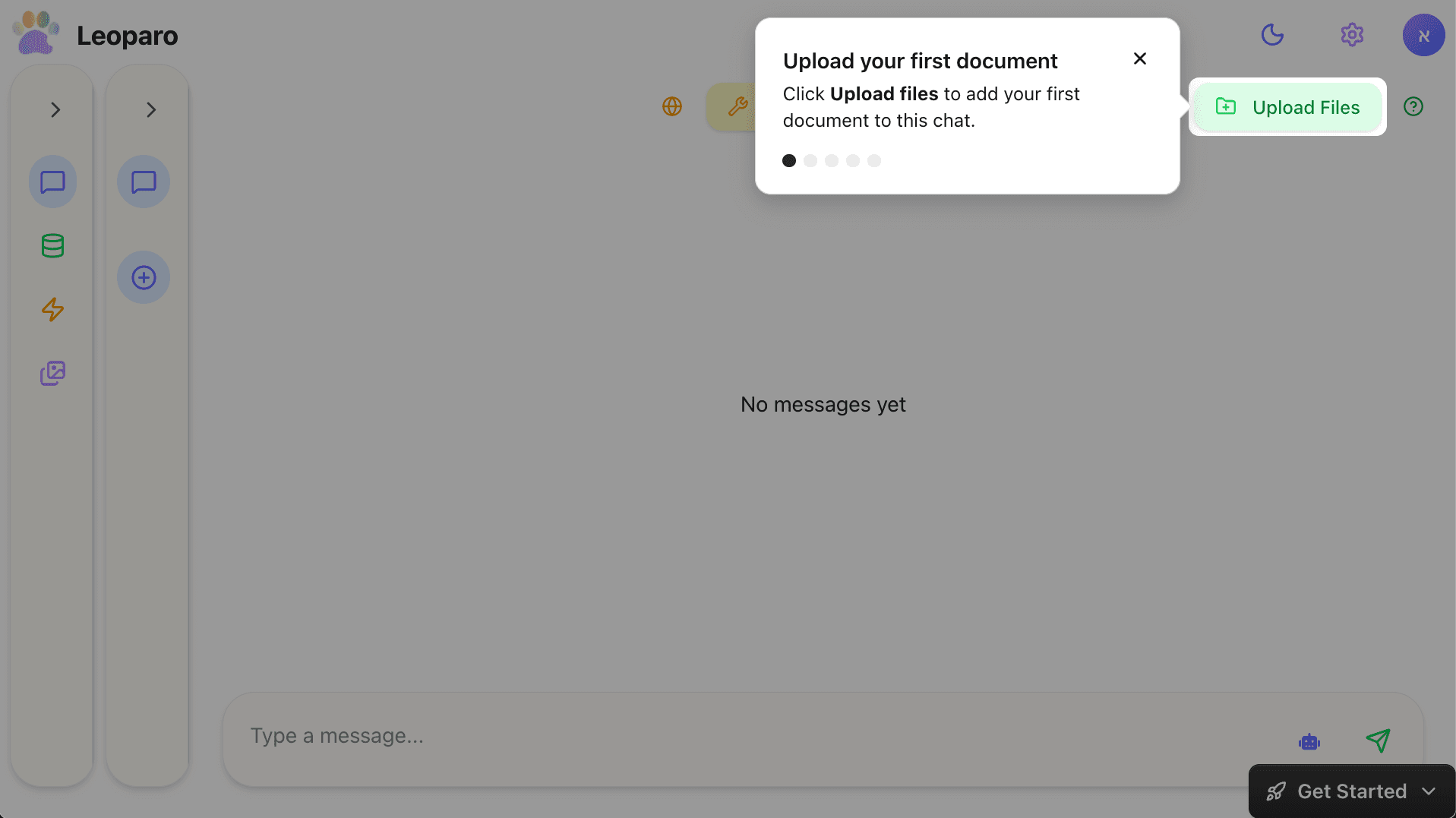
Click Upload files to add your first document to this chat.
Add your document
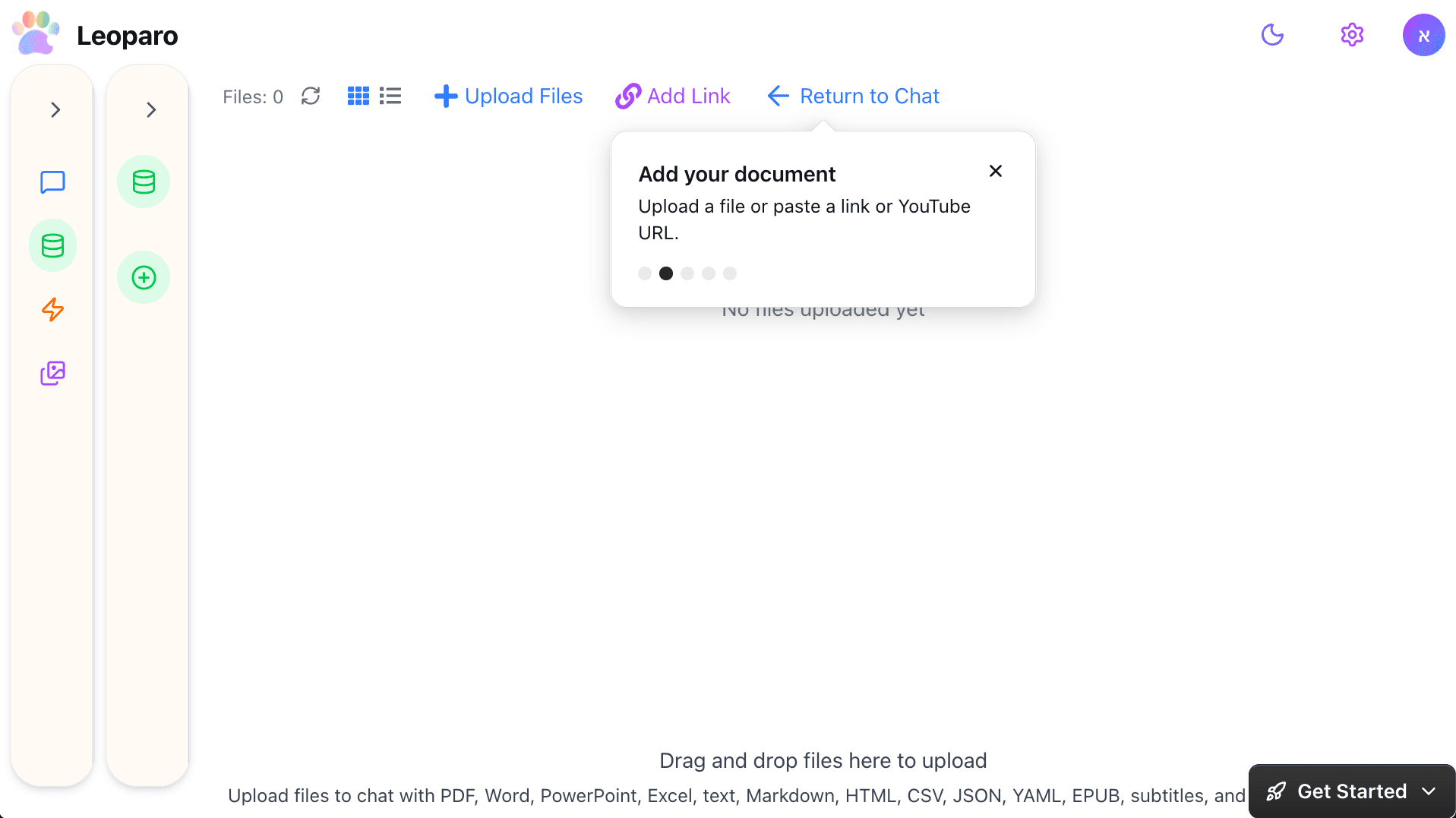
Upload a file or paste a link or YouTube URL.
Return to chat
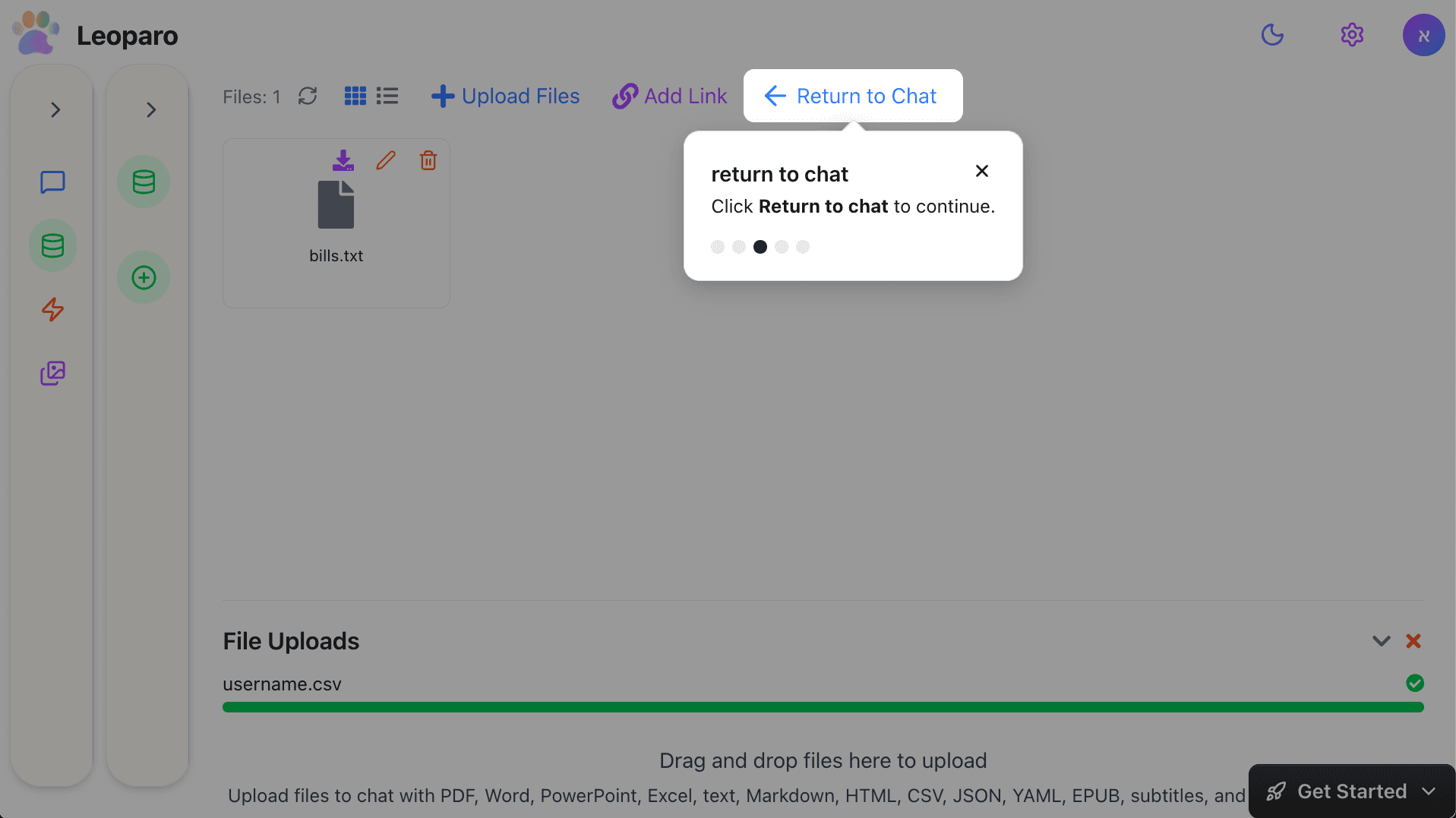
Click Return to chat to continue.
Start chatting with your document
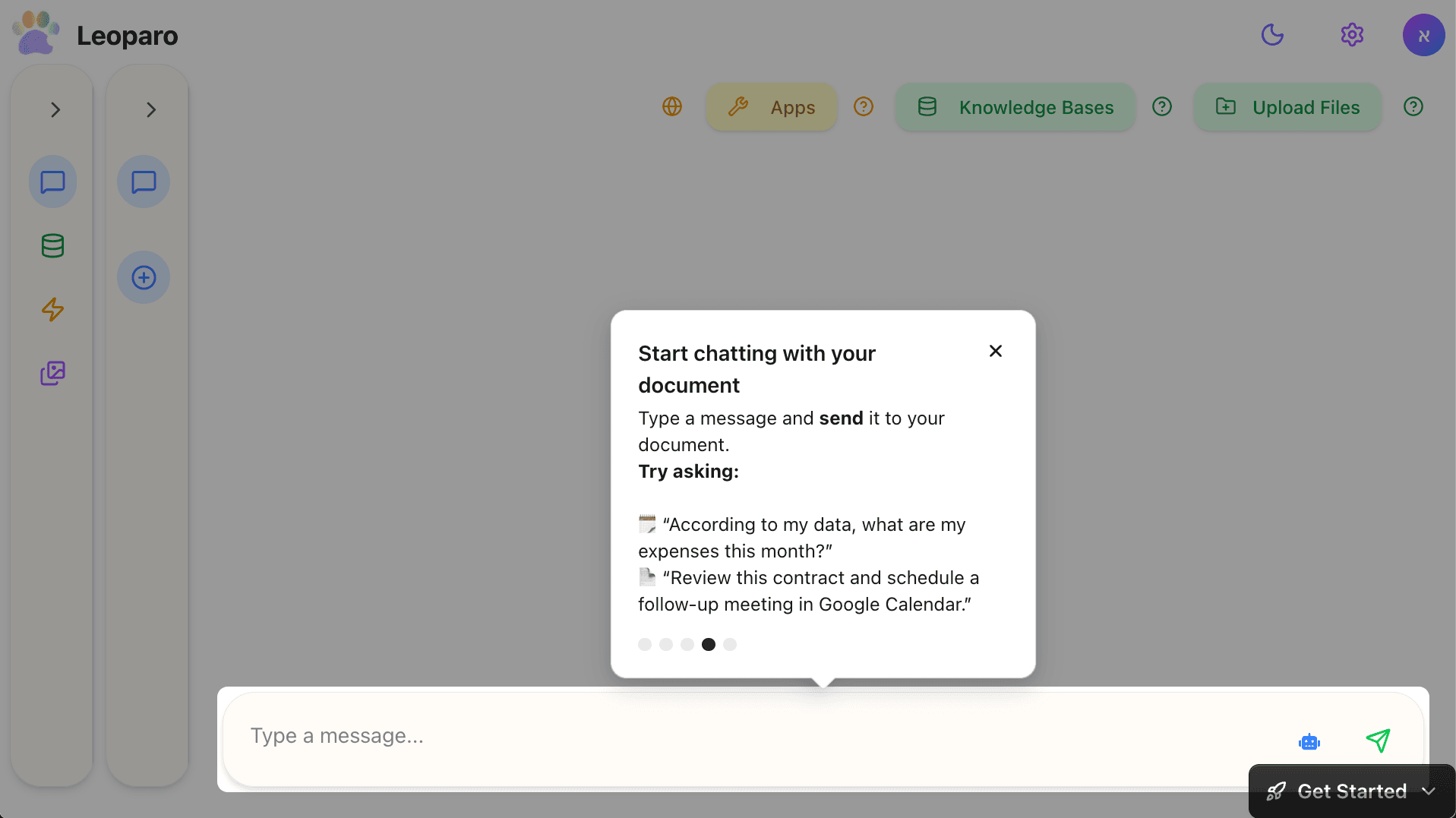
Type a message and send it to your document.
Try asking:
- 🗓️ “According to my data, what are my expenses this month?”
Then Leoparo will use your document to answer your question:
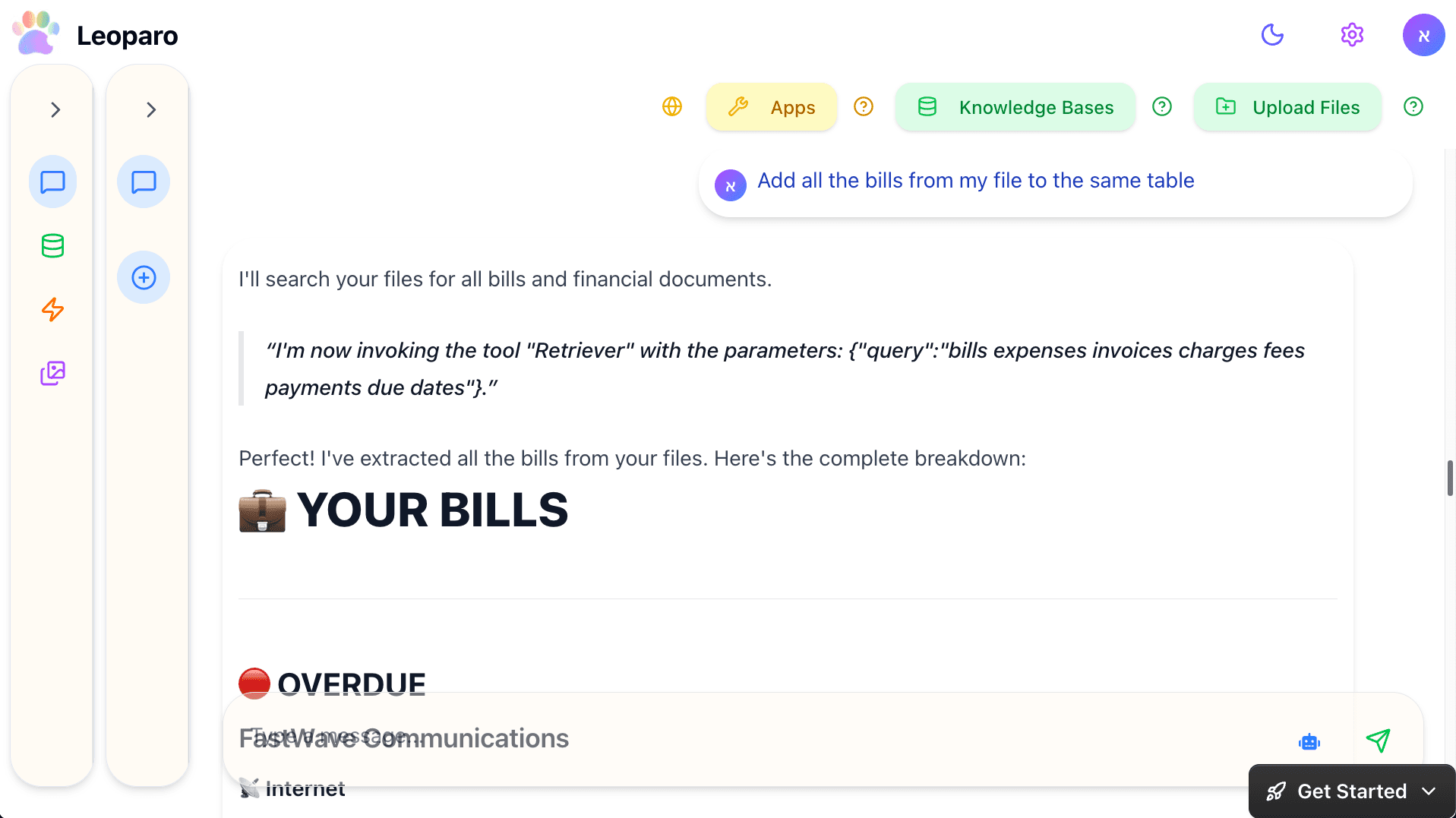
Your personal AI is ready
You’re ready. Chat with your apps and data, and automate your work — all in one place.