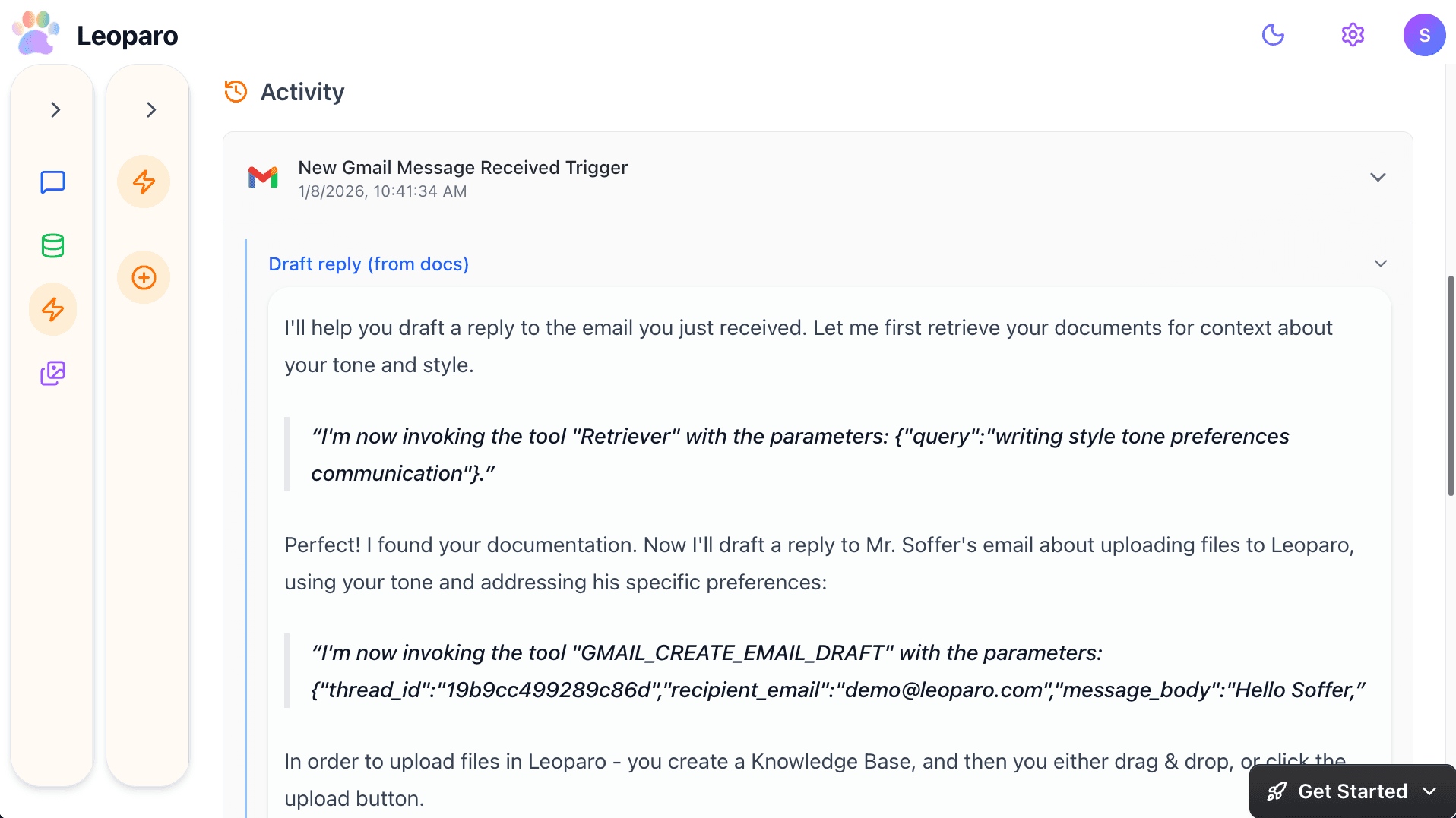
Set up your first automation
Let’s set up your first automation.
Then try:
- ⚡ “When I get an email → use my docs for context and draft a reply”
- 💰 “When I get a bill by email → add it to my Notion bills table”
The easy way (recommended)
Just tell Leoparo what you want in the chat — for example, “When I get a new email, draft a reply” — and it will create the automation for you.
With agent mode on, it creates the automation automatically. With agent mode off, it asks for your approval before creating it.
Either way, you don’t have to set up automations manually.
If you still prefer to do it manually, follow the guide below.
Manual setup
Open the menu
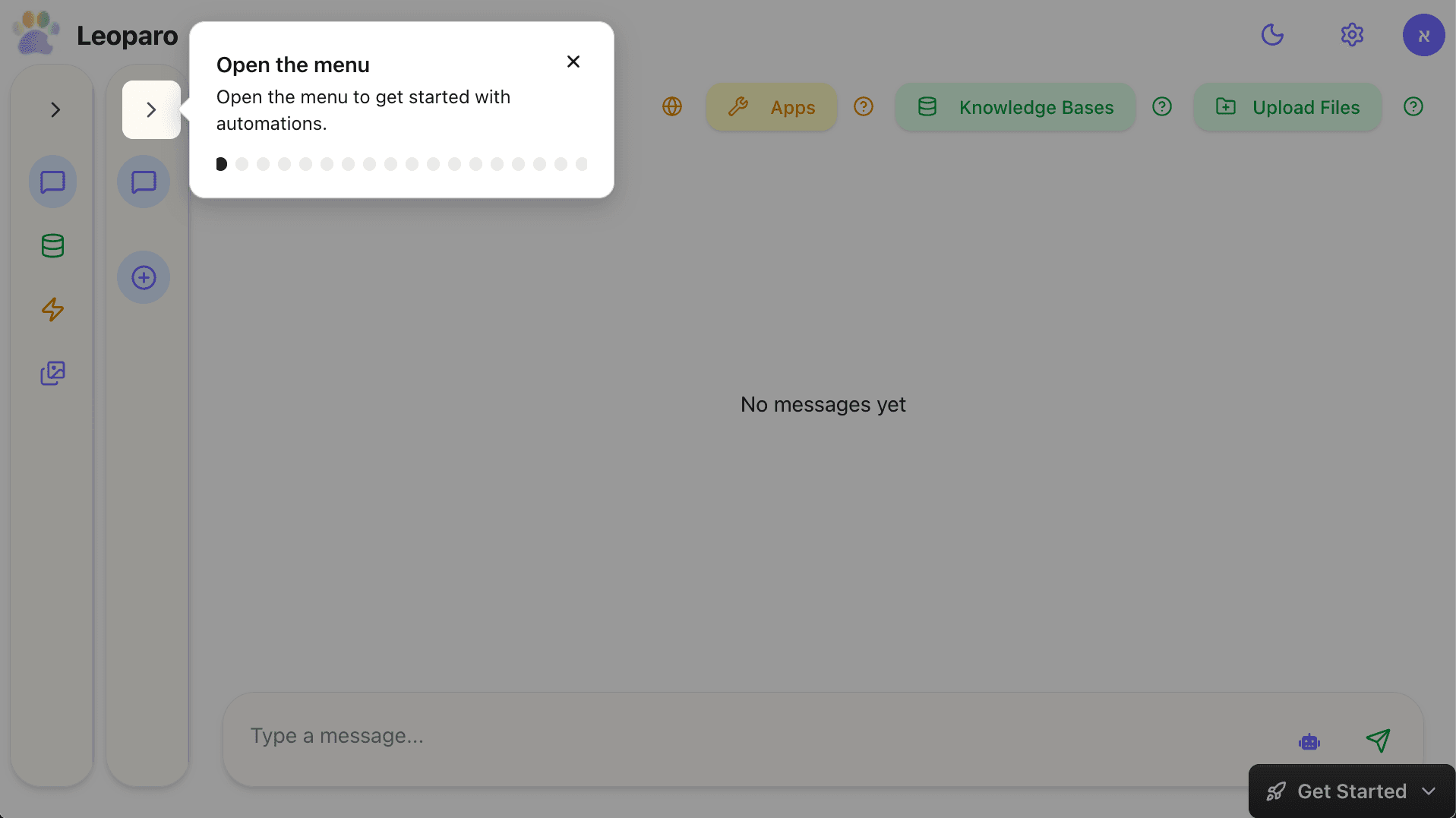
Open the menu to get started with automations.
Open the tab switcher
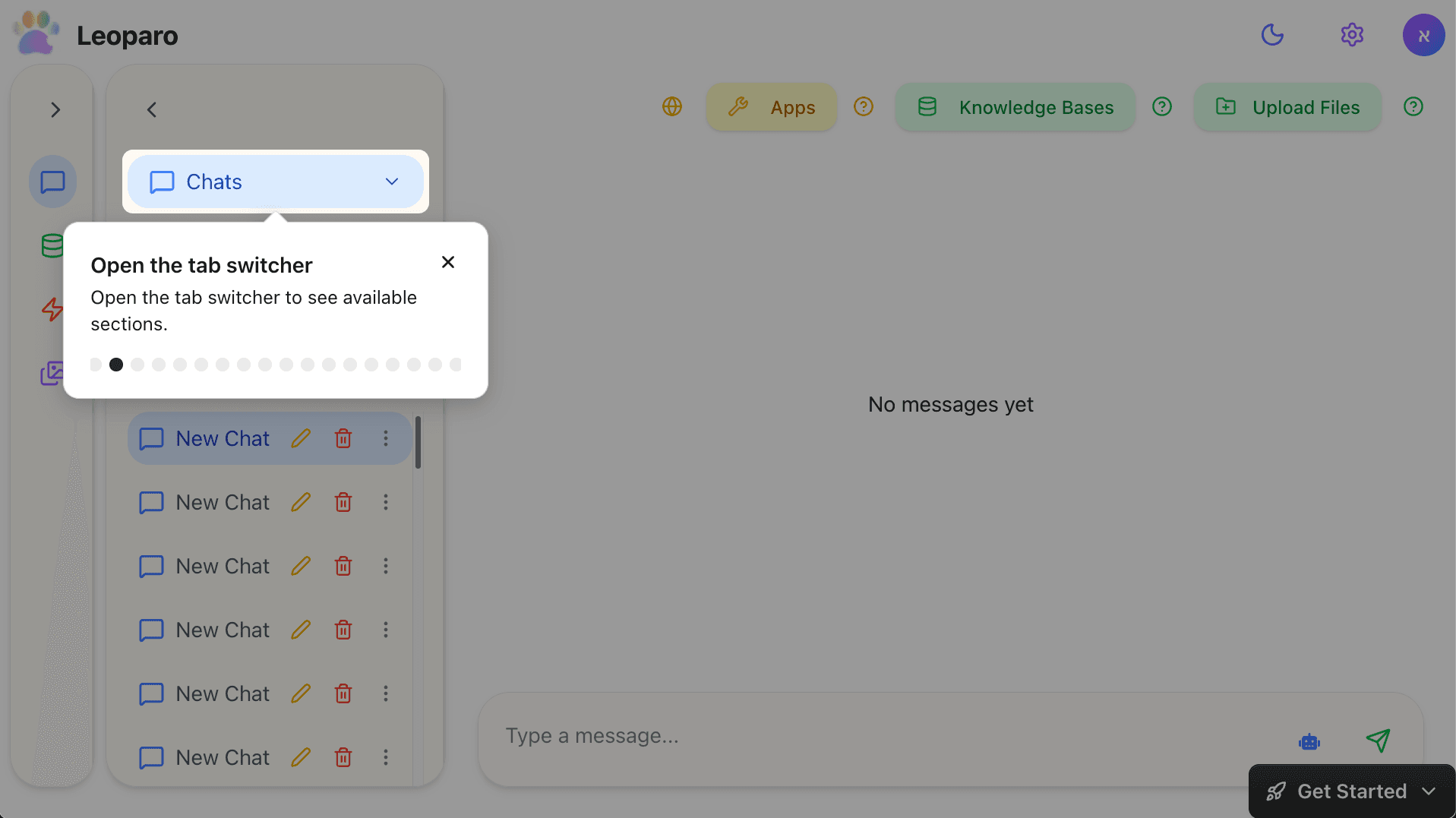
Open the tab switcher to see available sections.
Switch to Automations
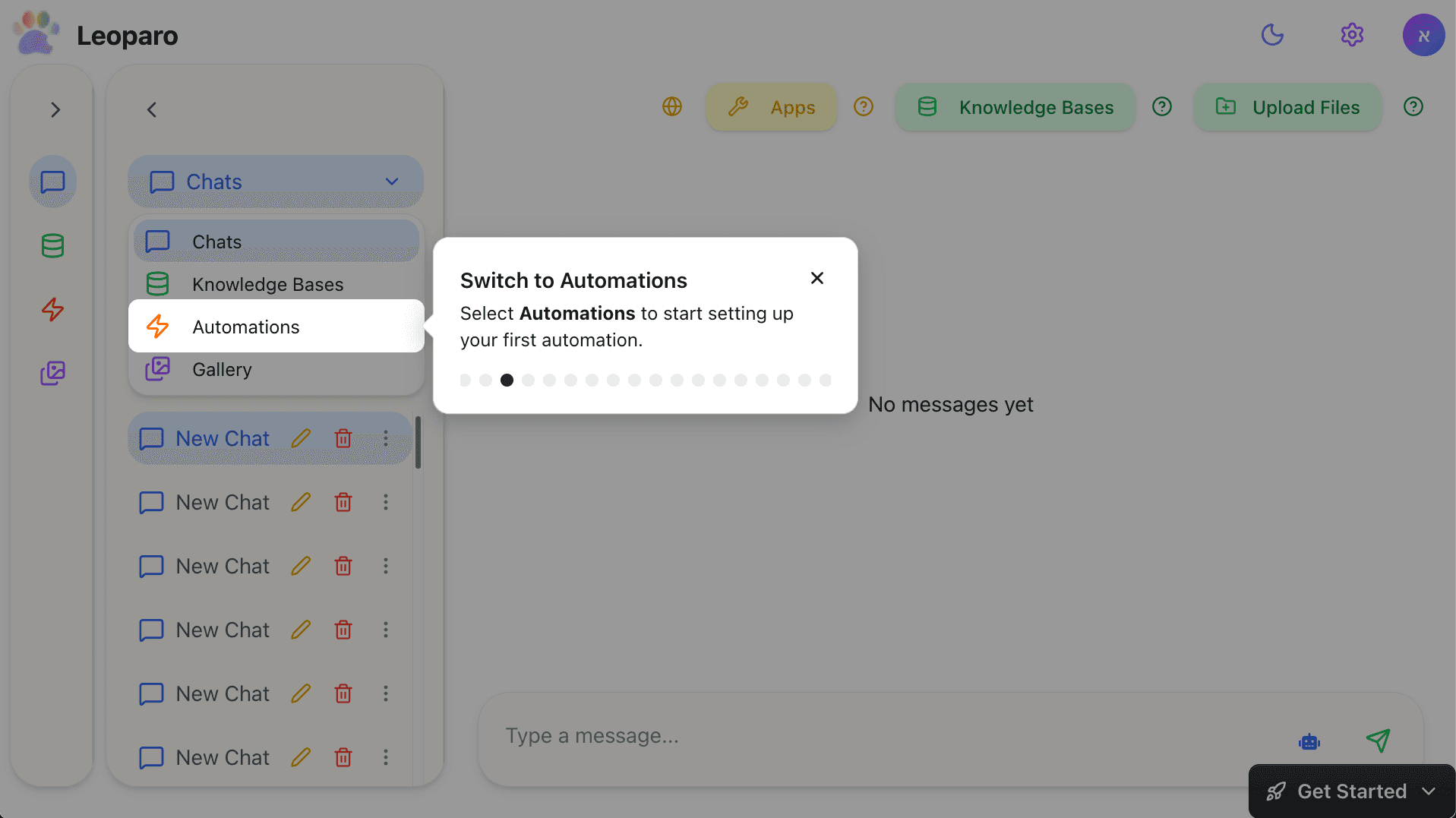
Select Automations to start setting up your first automation.
Add your first trigger
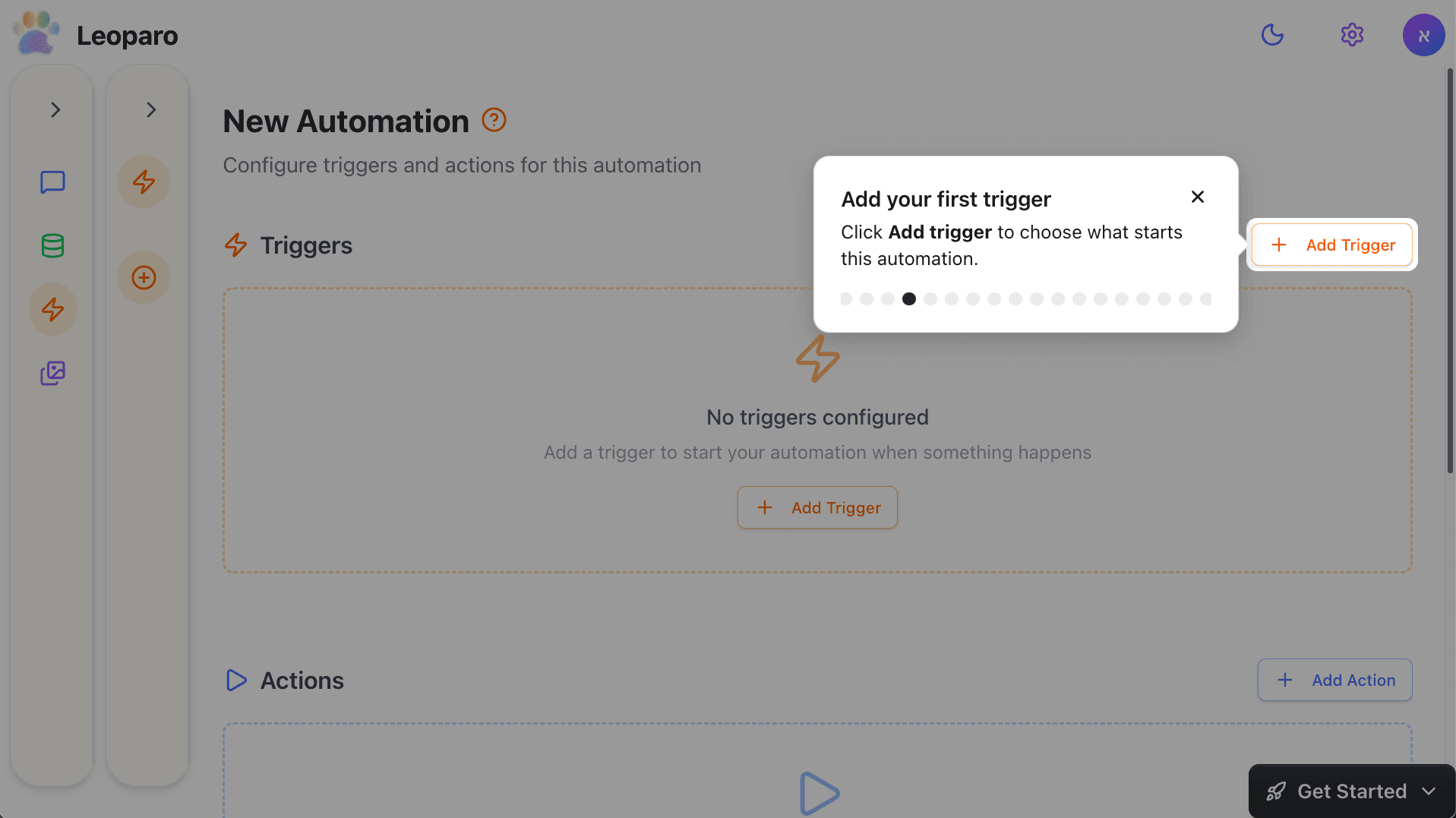
Click Add trigger to choose what starts this automation.
Find your app
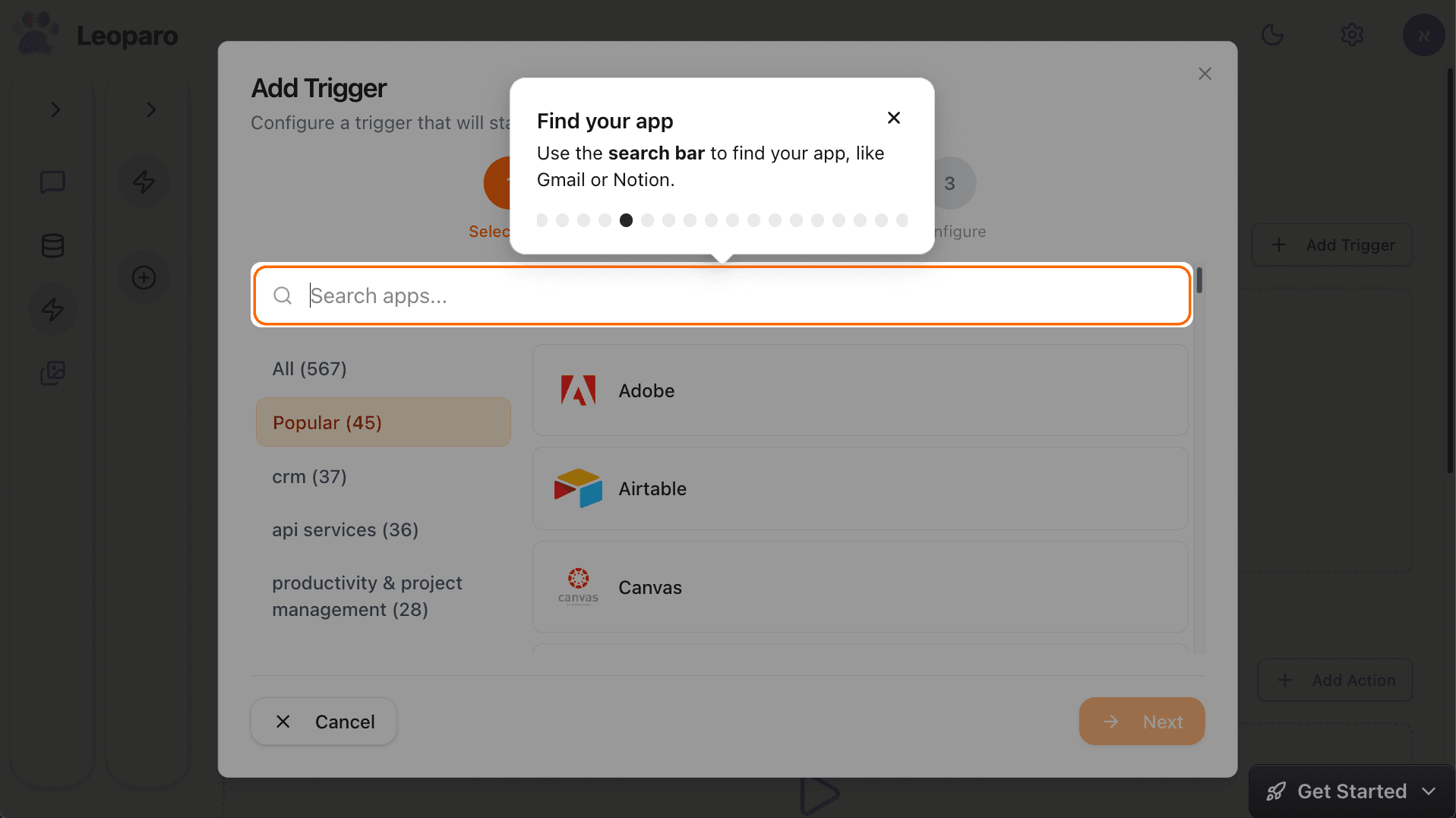
Use the search bar to find your app, like Gmail or Notion.
Select your app
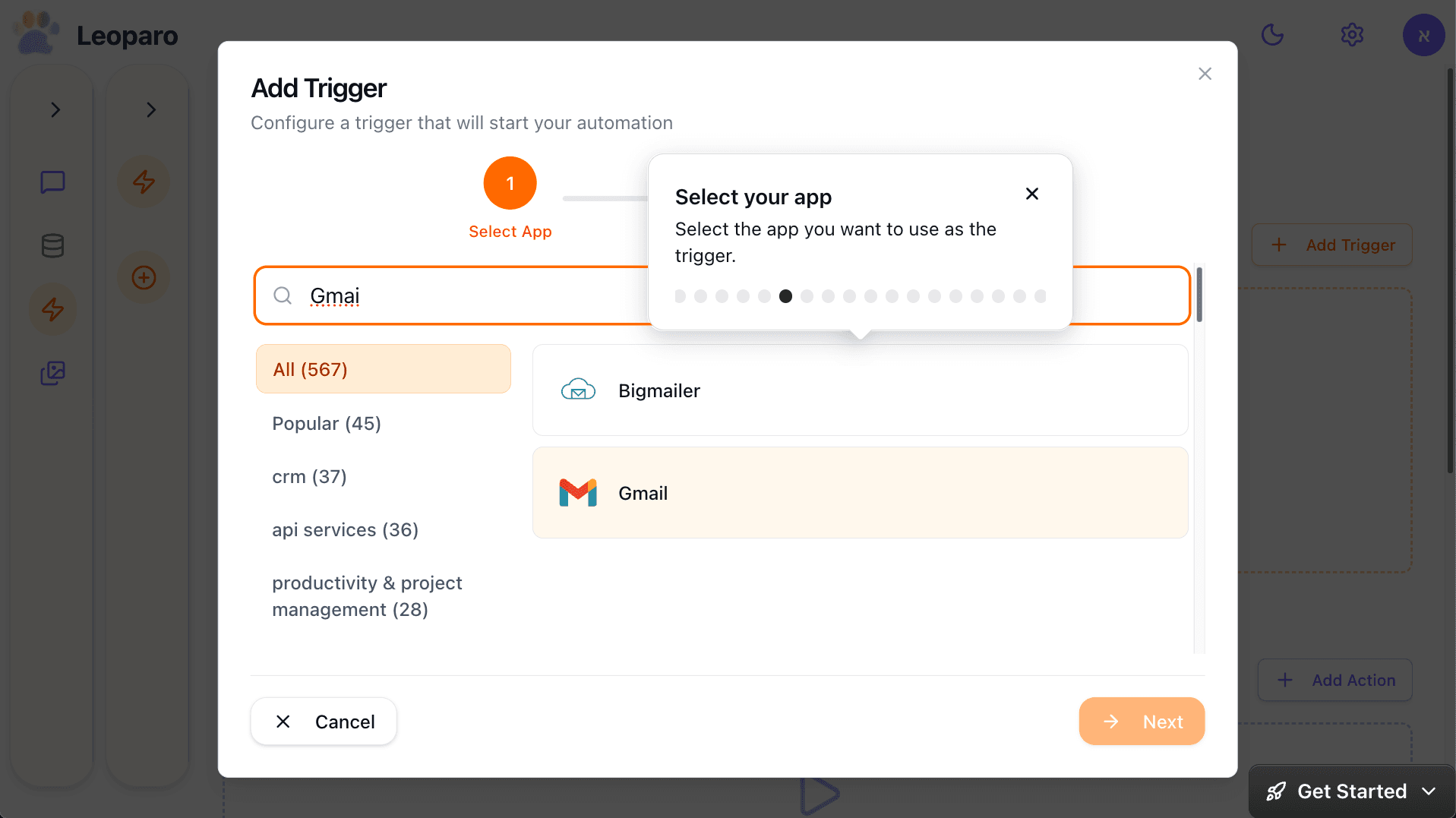
Select the app you want to use as the trigger.
Continue
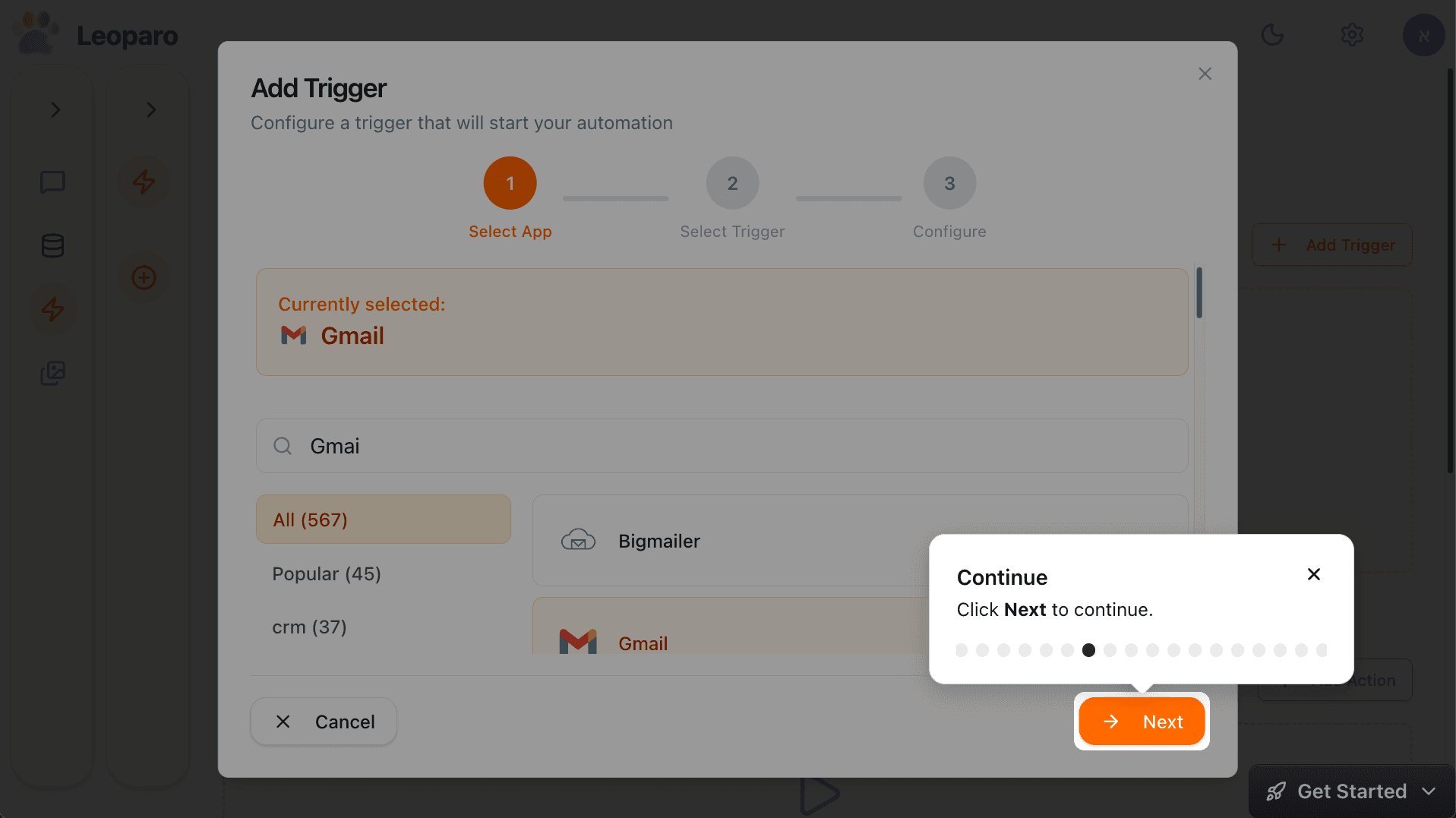
Click Next to continue.
Choose a trigger
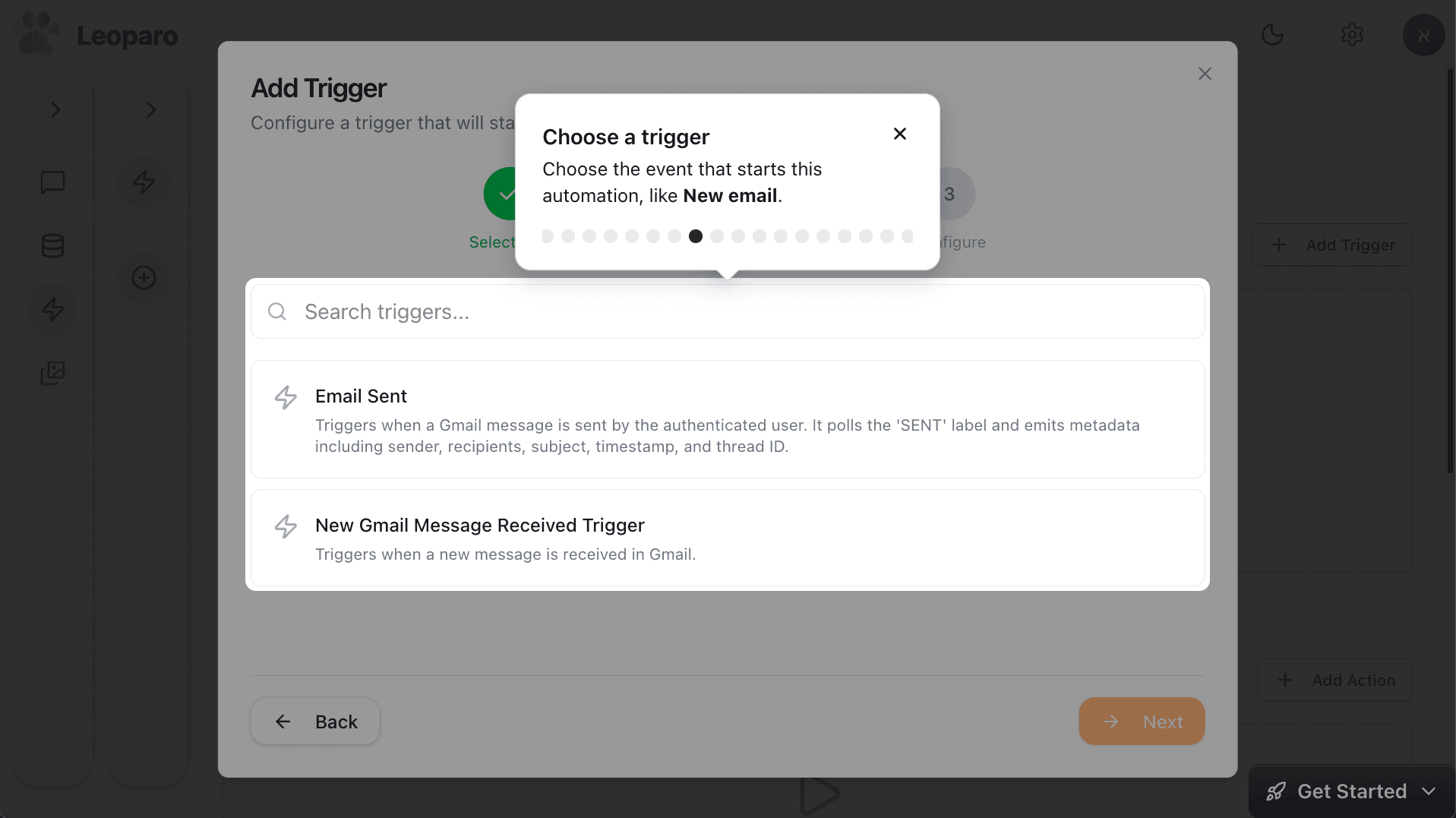
Choose the event that starts this automation, like New email.
Continue
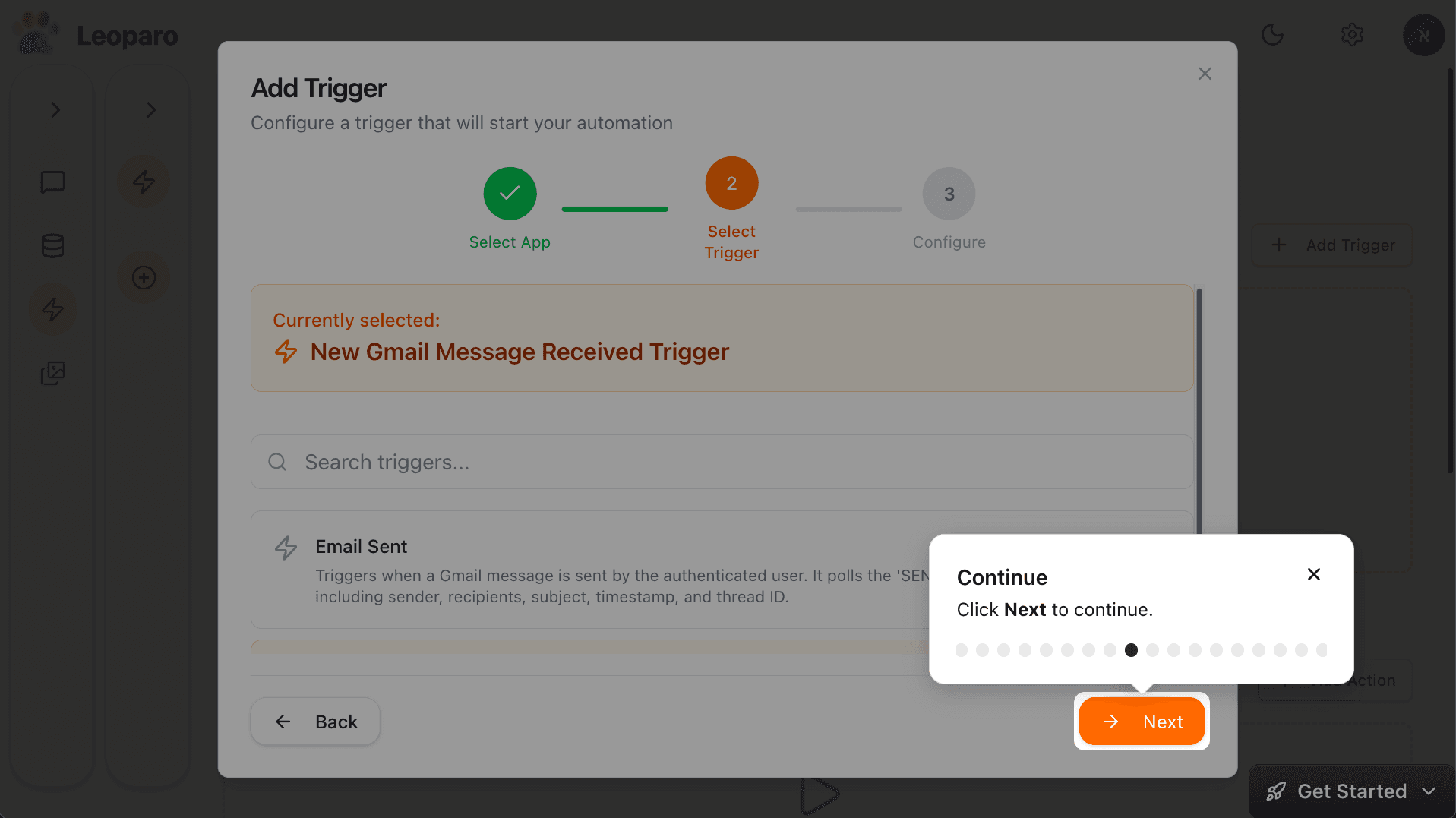
Click Next to continue.
Review trigger settings
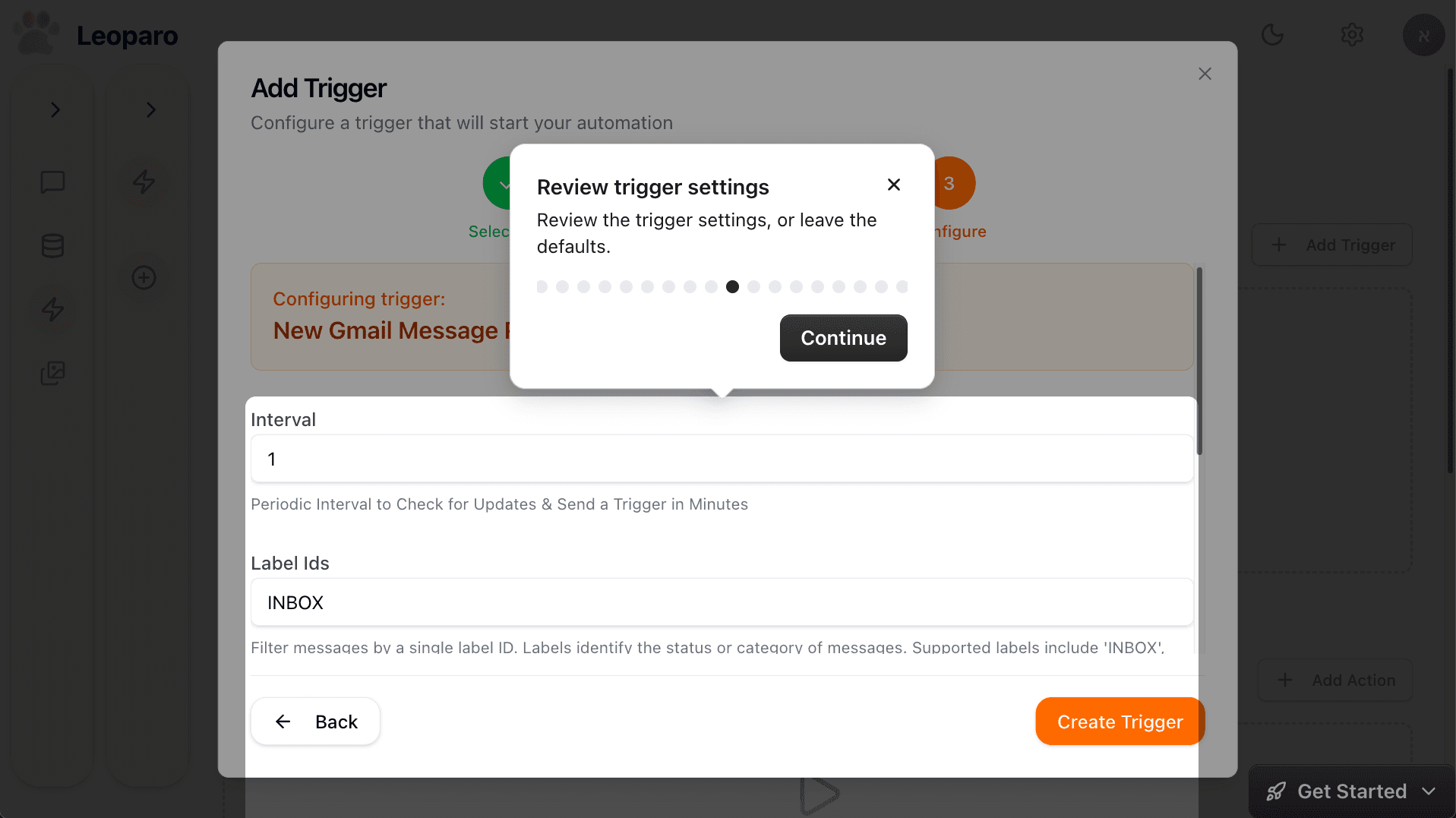
Review the trigger settings, or leave the defaults.
Create your first trigger
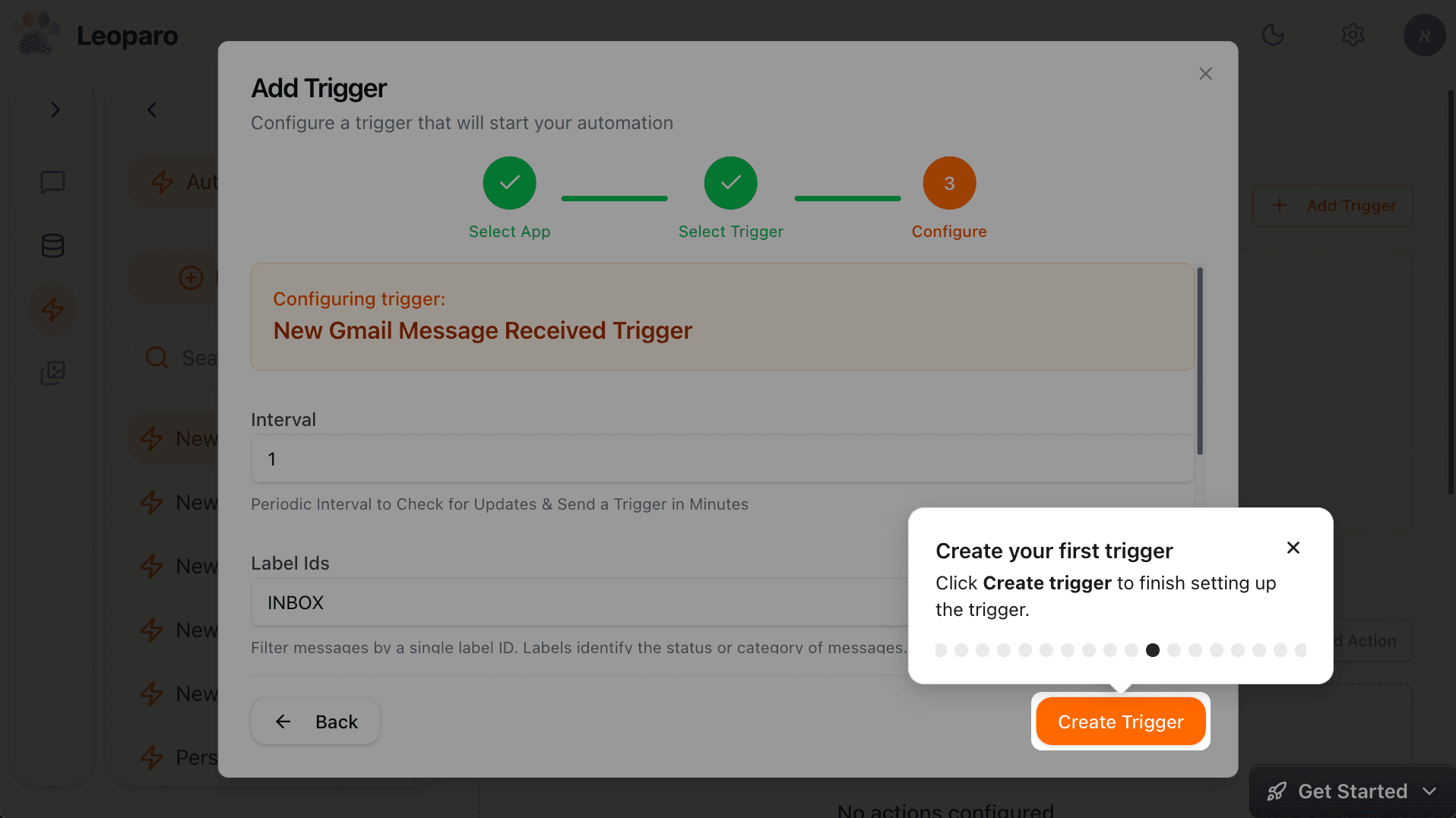
Click Create trigger to finish setting up the trigger.
Add your first action
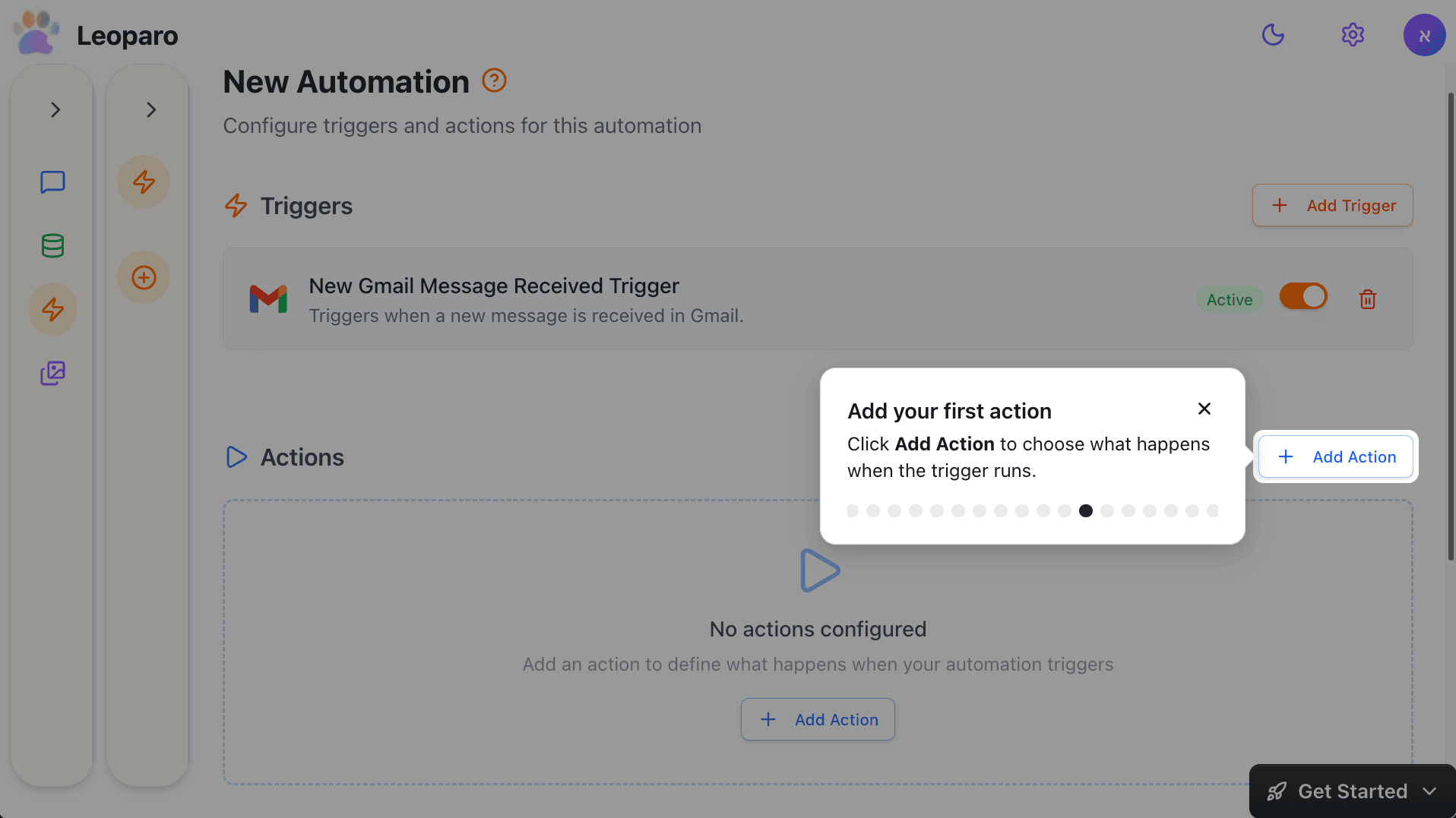
Click Add Action to choose what happens when the trigger runs.
Name your action
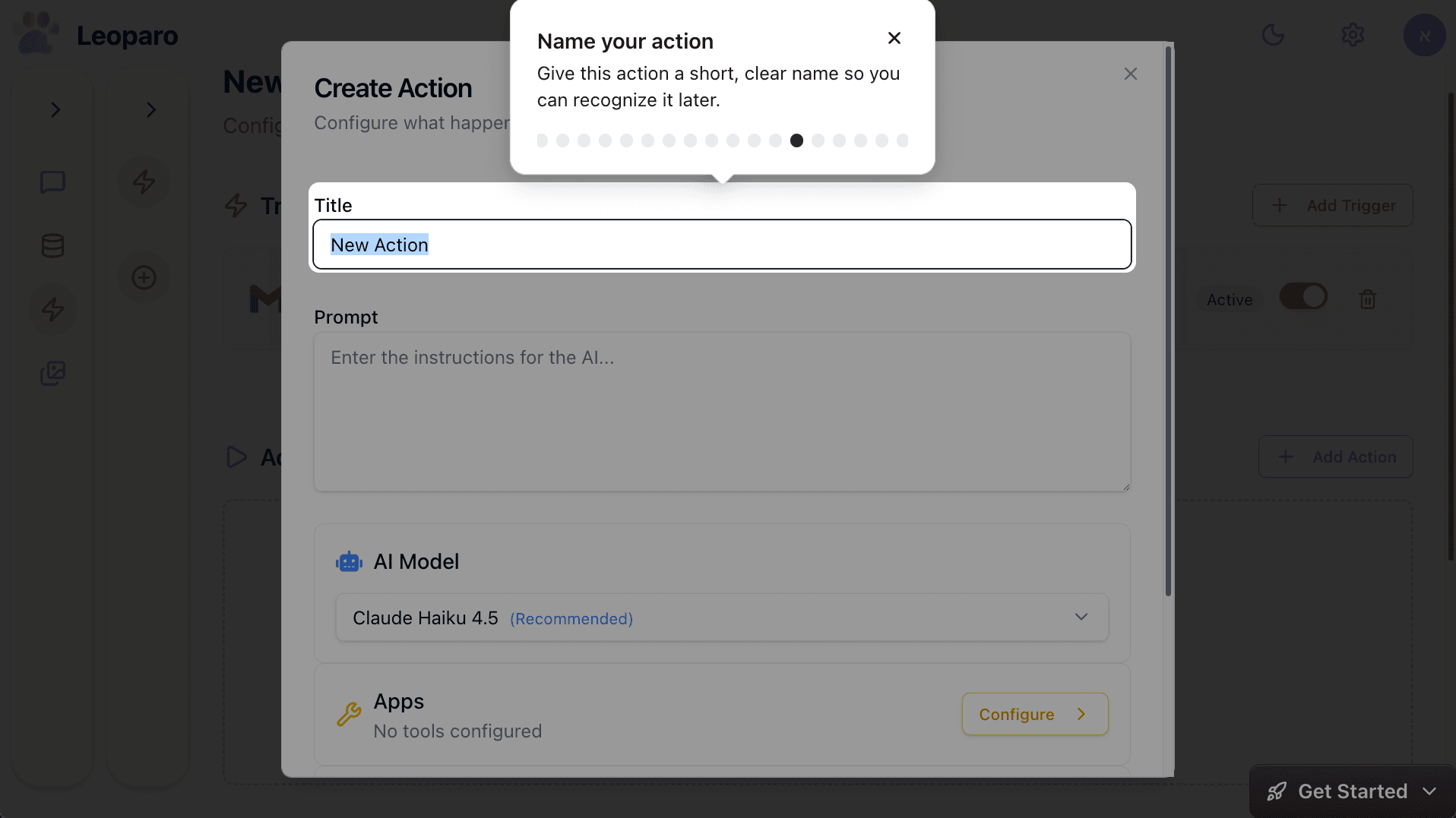
Give this action a short, clear name so you can recognize it later.
Tell Leoparo what to do
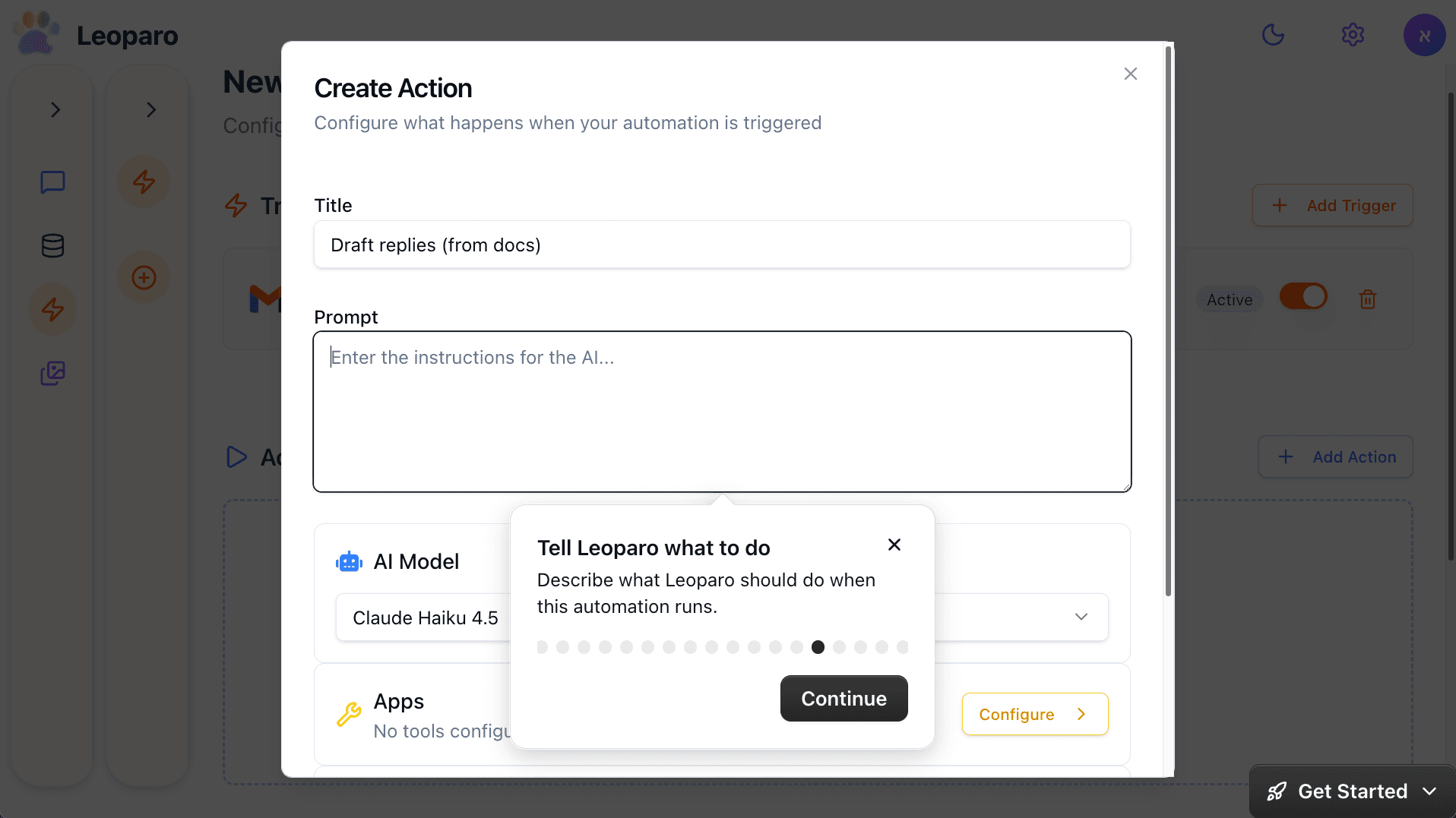
Describe what Leoparo should do when this automation runs.
Add context (optional)
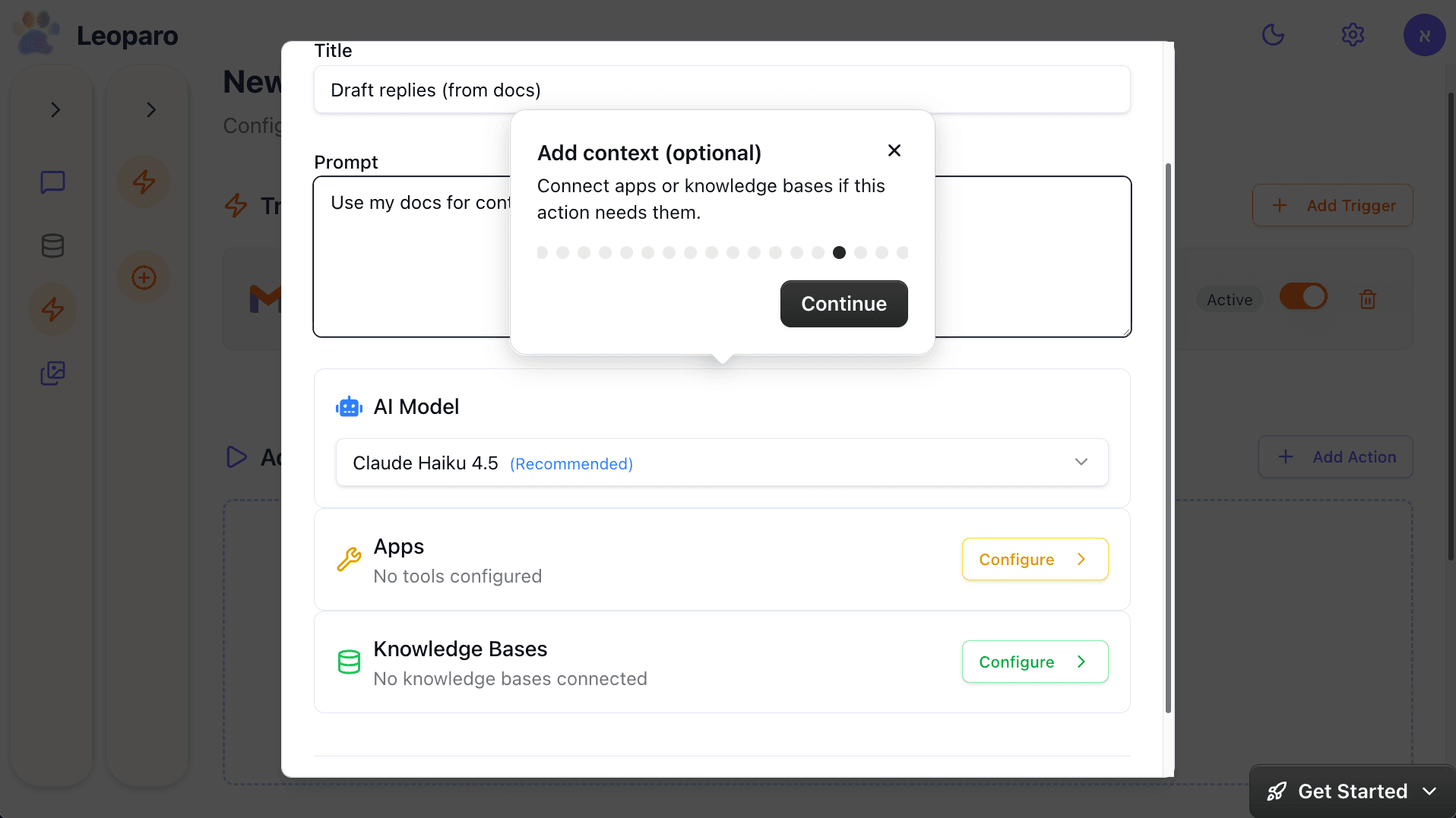
Connect apps or knowledge bases if this action needs them.
Create your action
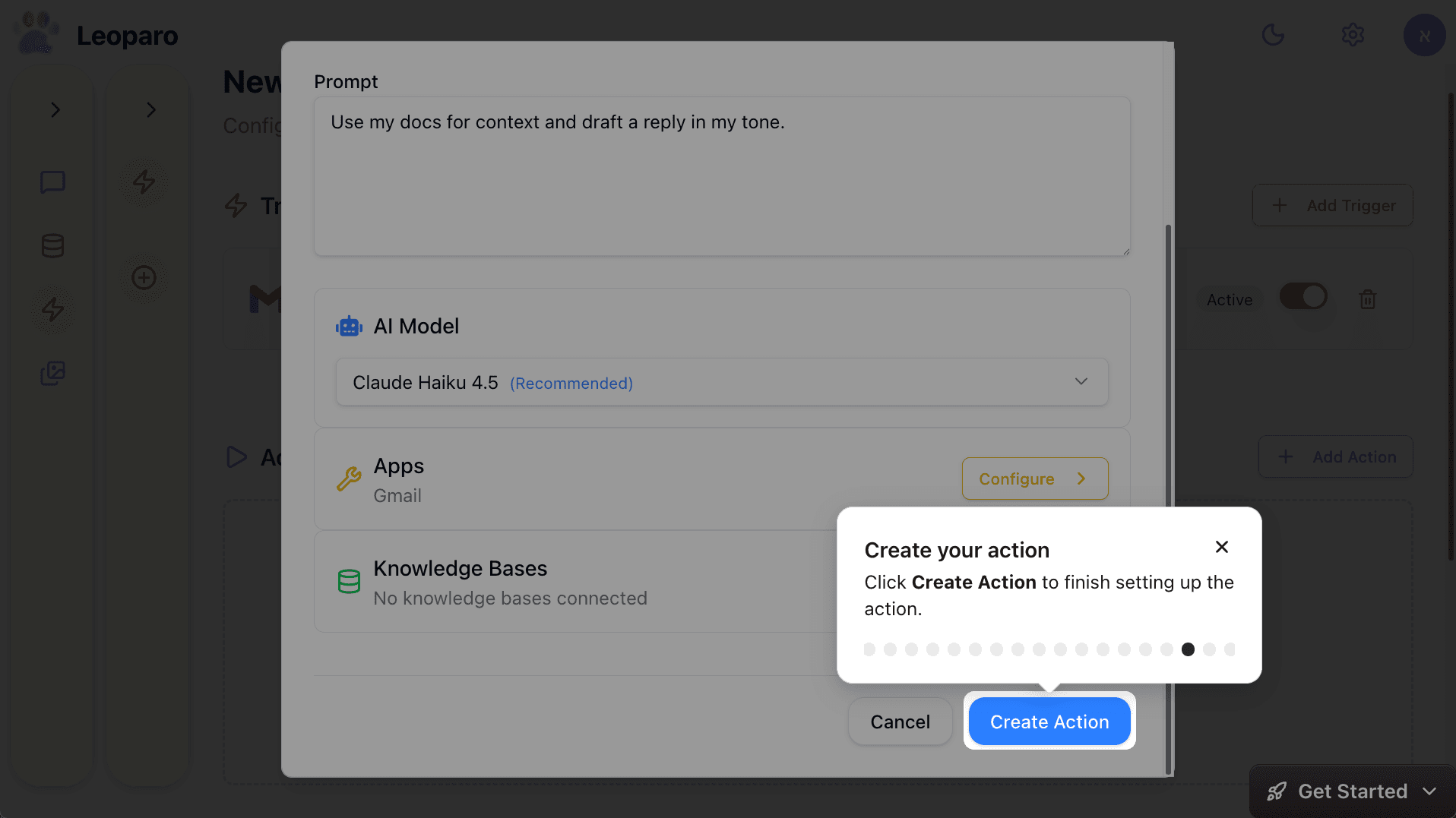
Click Create Action to finish setting up the action.
See your automation run
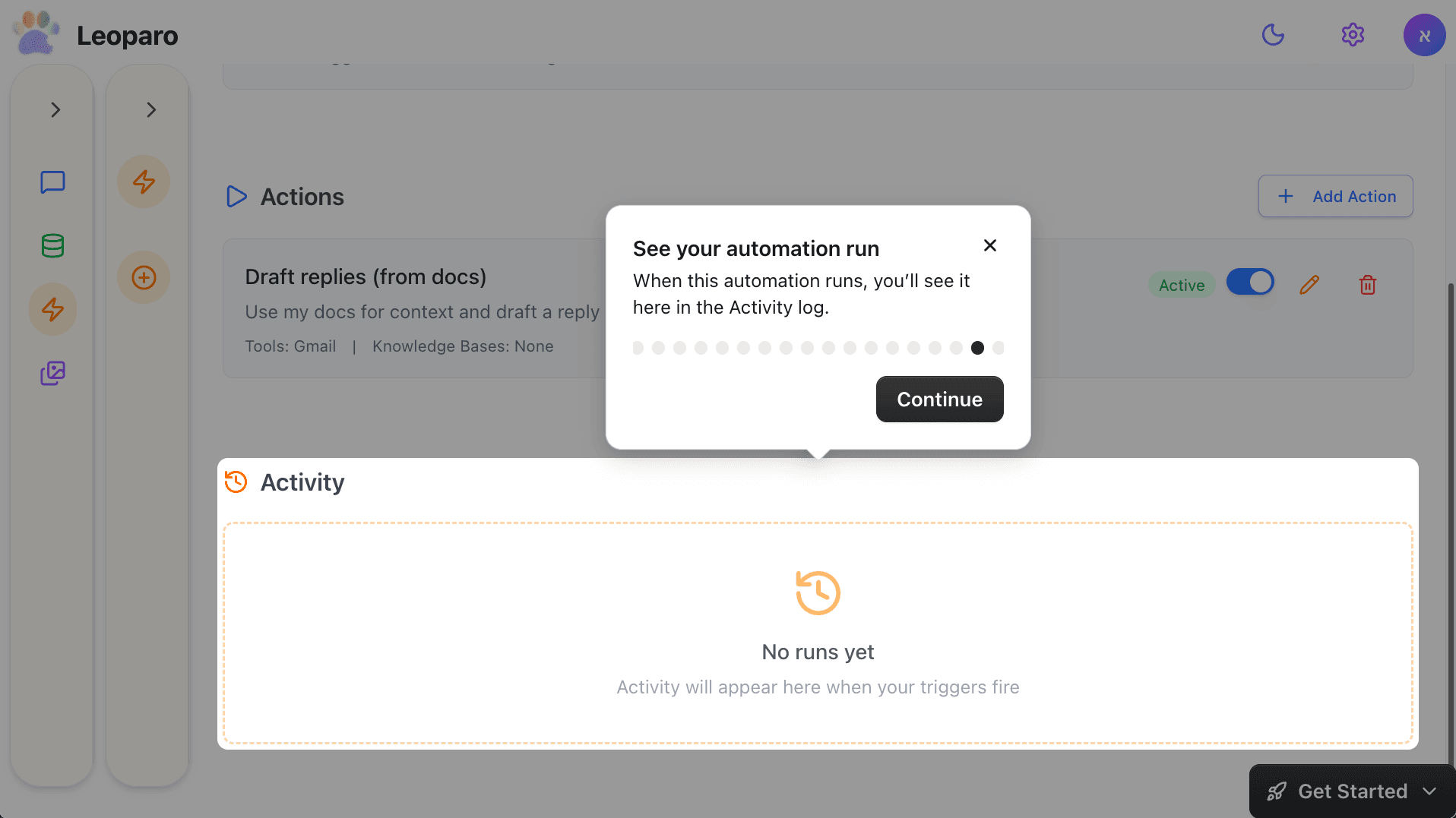
When this automation runs, you’ll see it here in the Activity log.
Your automation is ready
This automation will now run automatically when its trigger happens.
Example: